
Running PostgreSQL on Docker

By Jeffry Johar
July 27, 2022

Introduction
PostgreSQL, or Postgres, is an open-source relational database. It is officially supported on all the major operating systems: Windows, Linux, BSD, MacOS, and others.
Besides running as an executable binary in an operating system, Postgres is able to run as a containerized application on Docker! In this article we are going to walk through the Postgres implementation on Docker.
Prerequisites
- Docker or Docker Desktop. Please refer to my previous article for help with Docker installation.
- Internet access is required to pull or download the Postgres container image from the Docker Hub.
- A decent text editor, such as Vim or Notepad++, to create the configuration YAML files.
Get to know the official Postgres Image
Go to Docker Hub and search for “postgres”.
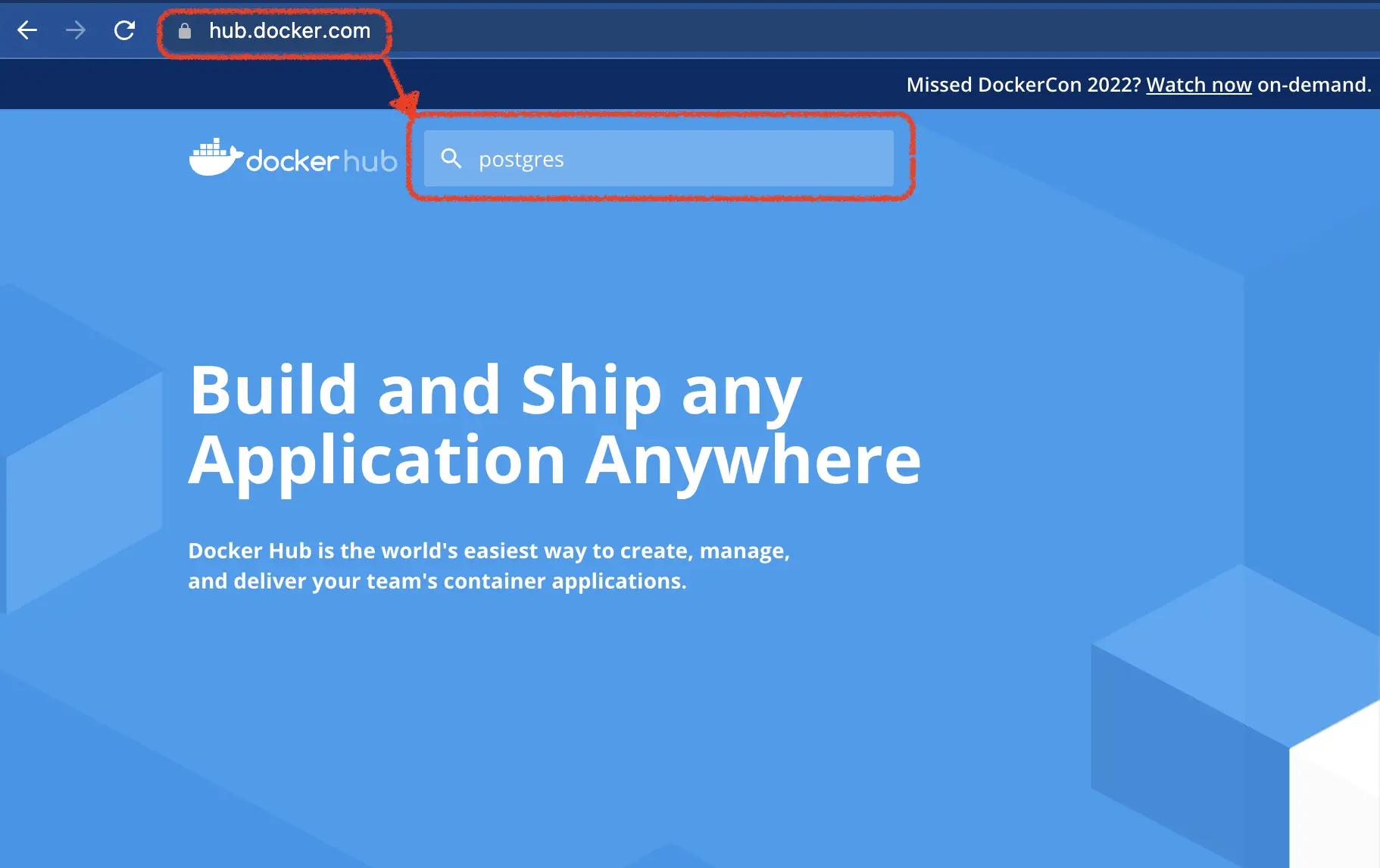
There are a lot of images for PostgreSQL at Docker Hub. If you don’t have any special requirements, it is best to select the official image. This is the image maintained by the Docker PostgreSQL Community.
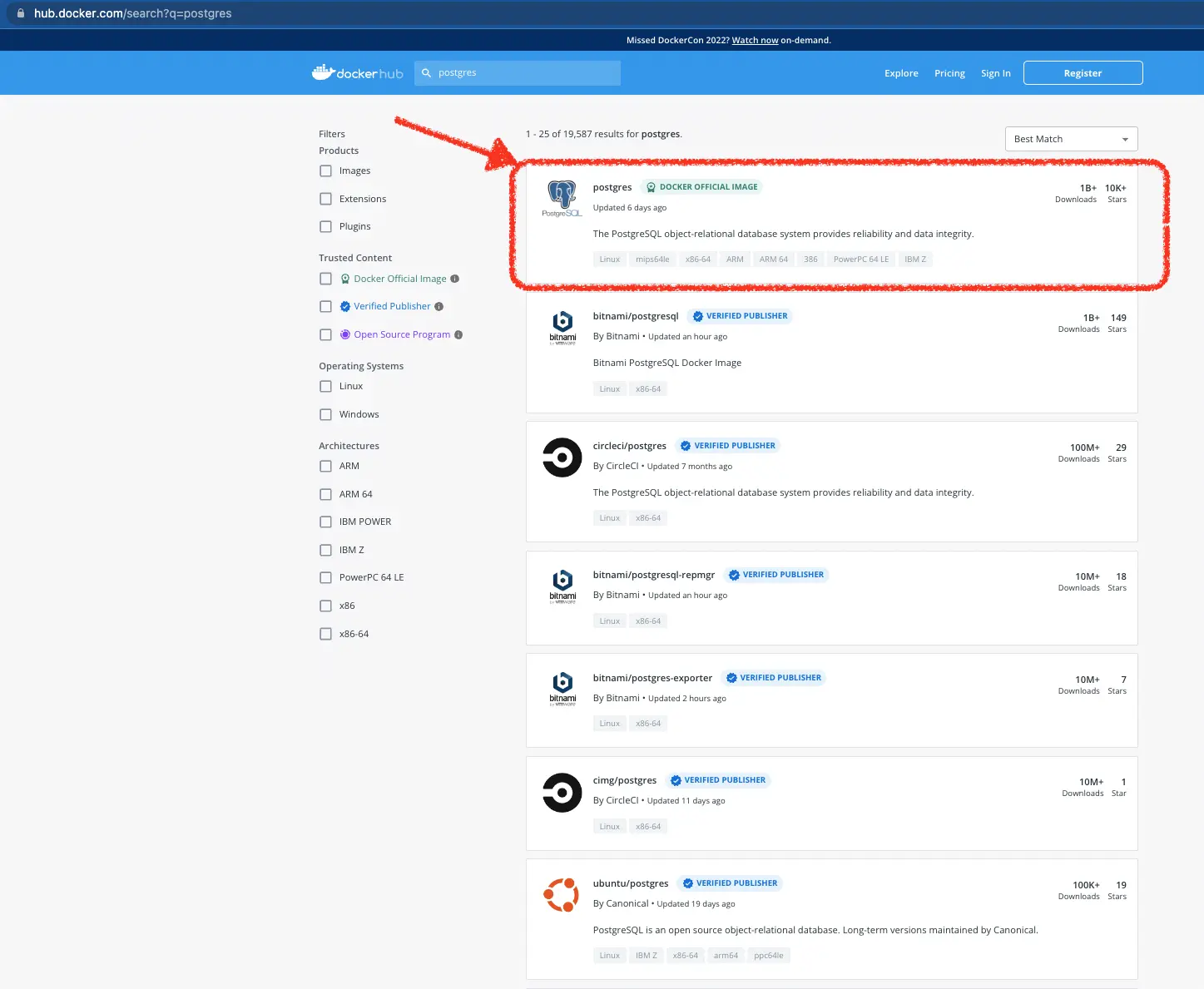
The page that search result links to describes the Postgres image, how it was made and how to use it. From this page we know the image name and the required parameters. This is essential information for starting a Docker image, as we will see in the following steps.
Run the Postgres image as a basic Postgres container
The following command is the bare minimum for running Postgres on Docker:
docker run --name basic-postgres -e POSTGRES_PASSWORD=mysecretpassword -d postgresWhere:
--name basic-postgressets the container name to basic-postgres,-e POSTGRES_PASSWORD=mysecretpasswordsets the password of the default userpostgres,-druns the container in detached mode or in other words in the background, andpostgresuses the postgres image. By default it will get the image from https://hub.docker.com.
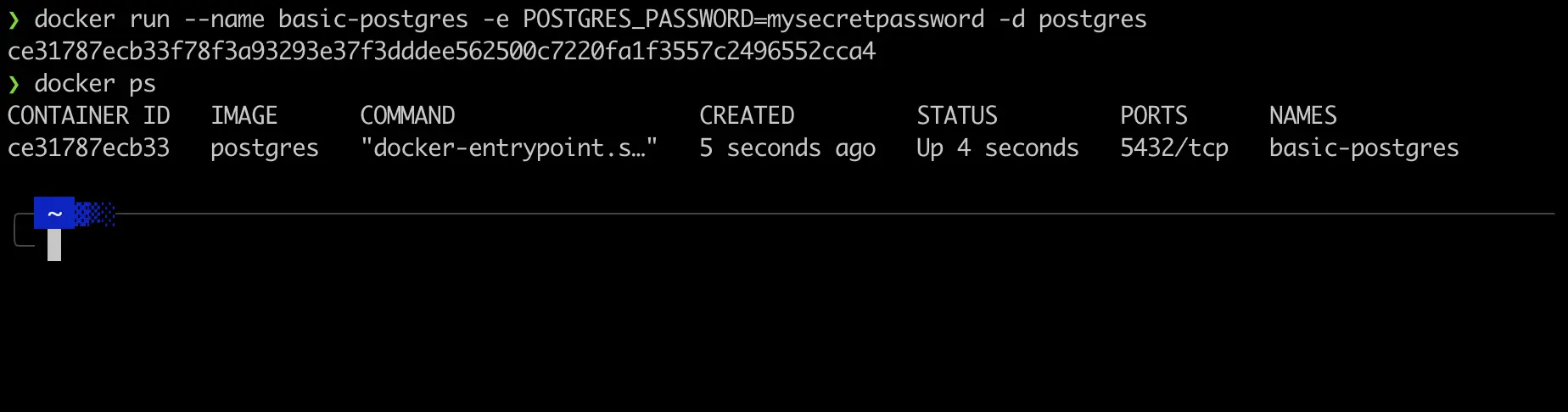
Execute docker ps to check on running Docker containers. We should see our basic-postgres container running. docker ps is like ps -ef on Linux/Unix, which lists all running applications.
Sample output:
Working with the Postgres container
Just as Postgres running natively on an operating system, Postgres on Docker comes with the psql front-end client for accessing the Postgres database. To access psql in the Postgres container execute the following command:
docker exec -it basic-postgres psql -U postgresWhere:
exec -itexecutes something interactive (-i) with a TTY (-t),basic-postgresspecifies the container, andpsql -U postgresis the psql command with its switch to specify the Postgres user.
Now we are able to execute any psql command.
Let’s try a few Postgres commands and import the famous “dvdrental” sample database to our Postgres installation.
List all available databases:
\lCreate a database named dvdrental:
create database dvdrental;List all available databases. We should now see the created dvdrental database.
\lQuit from psql:
\qDownload the dvdrental database backup from postgresqltutorial.com and after it succeeds, unzip it:
curl -O https://www.postgresqltutorial.com/wp-content/uploads/2019/05/dvdrental.zip
unzip dvdrental.zip
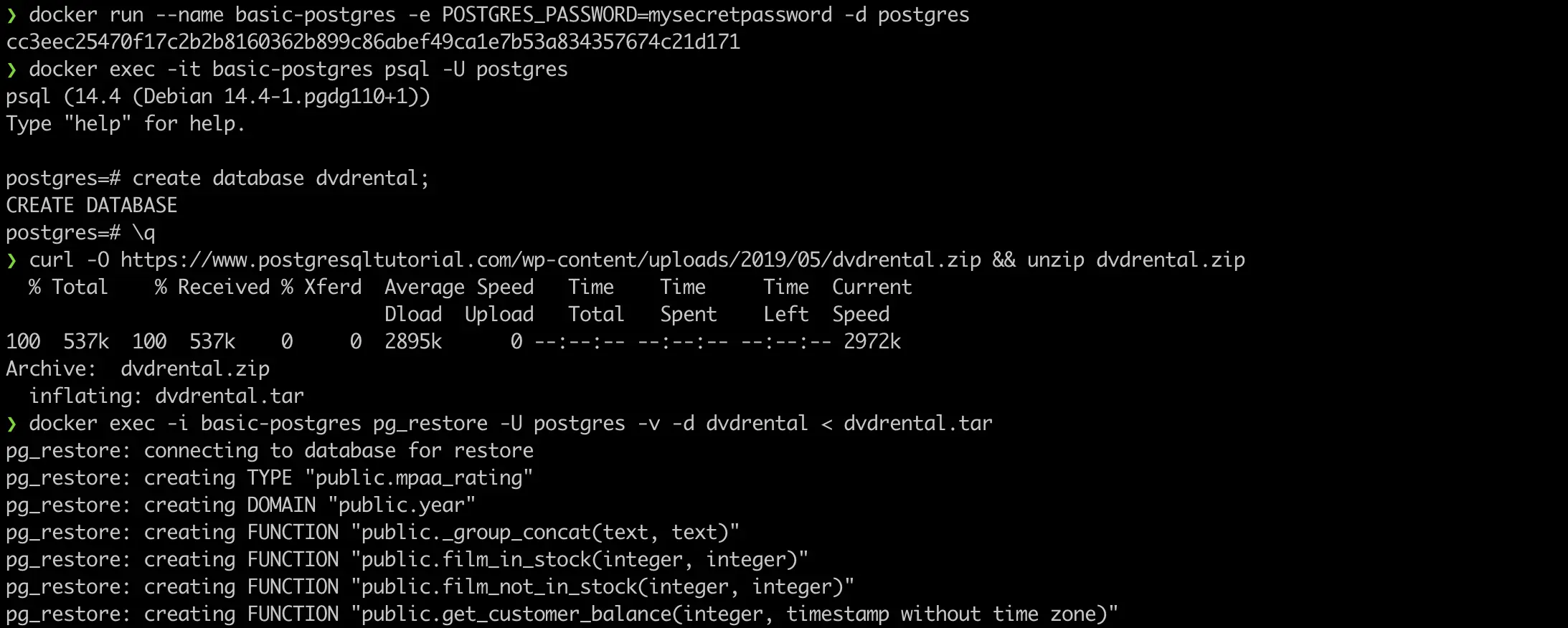
Execute the following command to import the data. It will restore the dvdrental.tar backup to our Postgres database.
docker exec -i basic-postgres pg_restore -U postgres -v -d dvdrental < dvdrental.tarWhere:
exec -iexecutes something interactive,basic-postgresspecifies which container,pg_restore -U postgres -v -d dvdrentalis the pg_restore command with its own arguments:-U postgressays to connect as the postgres user,-venables verbose mode,-d dvdrentalspecifies the database to connect to, and
< dvdrental.tarsays which file’s data the outside shell should pass into the container to pg_restore.
Log in to the dvdrental database:
docker exec -it basic-postgres psql -U postgres -d dvdrentalWhere:
exec -itexecutes something interactive with a terminal,basic-postgresspecifies which container, andpsql -U postgres -d dvdrentalis the psql command with the postgres user and the dvdrental database specified.
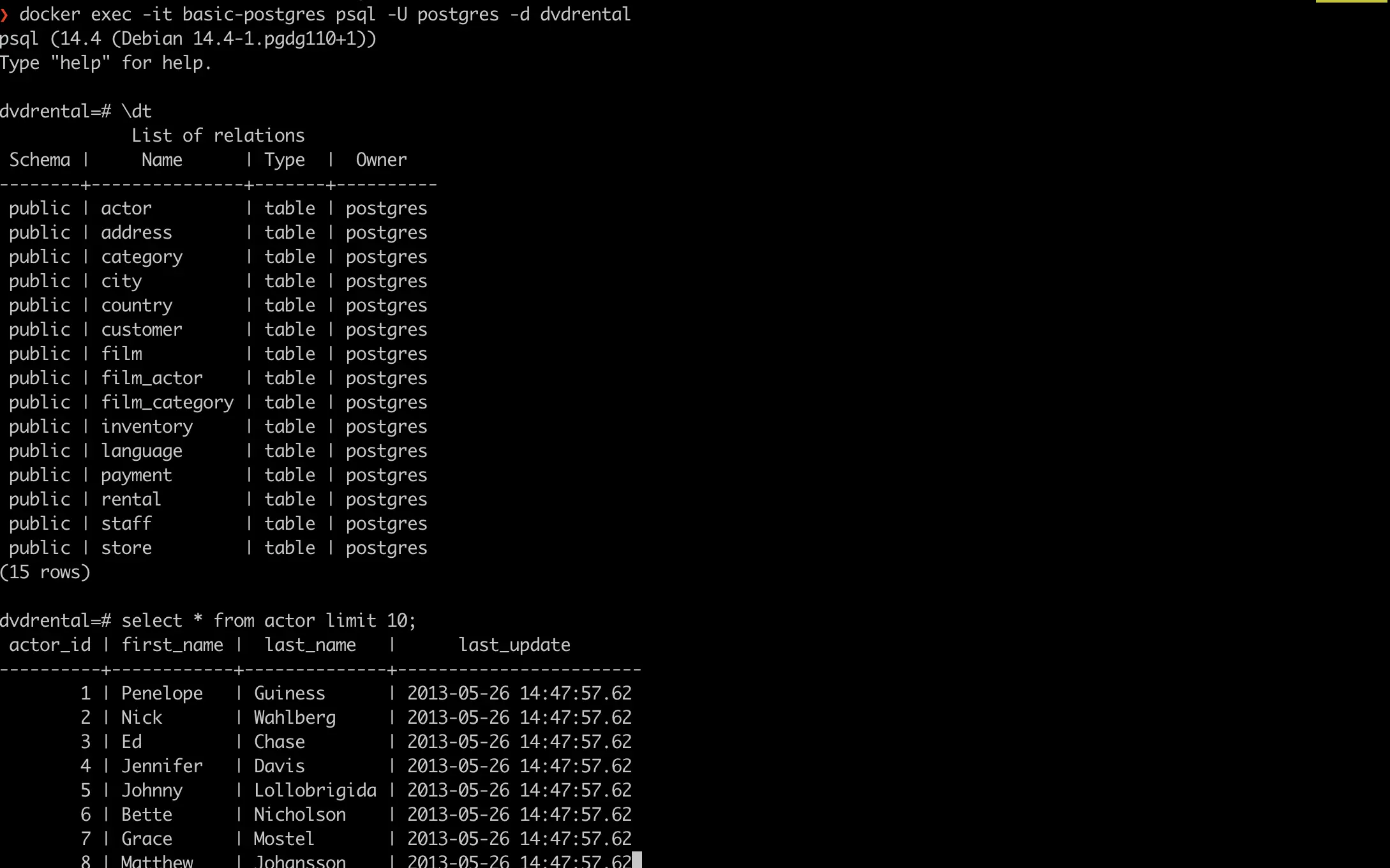
List all tables by describing the tables in the dvdrental database:
\dtList the first 10 actors from the actor table:
select * from actor limit 10;Quit from psql:
\qGracefully stop the Docker container:
docker stop basic-postgresIf you don’t need it anymore you can delete the container:
docker rm basic-postgresSample output:
And later:
Run Postgres image as a “real world” Postgres container
The basic Postgres container is only good for learning or testing. It requires more features to be able to serve as a working database for a real world application. We will add 2 more features to make it useable:
- Persistent storage: By default the container filesystem is ephemeral. What this means is whenever we restart a terminated or deleted container, it will get an all-new, fresh filesystem and all previous data will be wiped clean. This is not suitable for database systems. To be a working database, we need to add a persistent filesystem to the container.
- Port forwarding from host to container: The container network is isolated, making it inaccessible from the outside world. A database is no use if it can’t be accessed. To make it accessible we need to forward a host operating system port to the container port.
Let’s start building a “real world” Postgres container. Firstly we need to create the persistent storage. In Docker this is known as a volume.
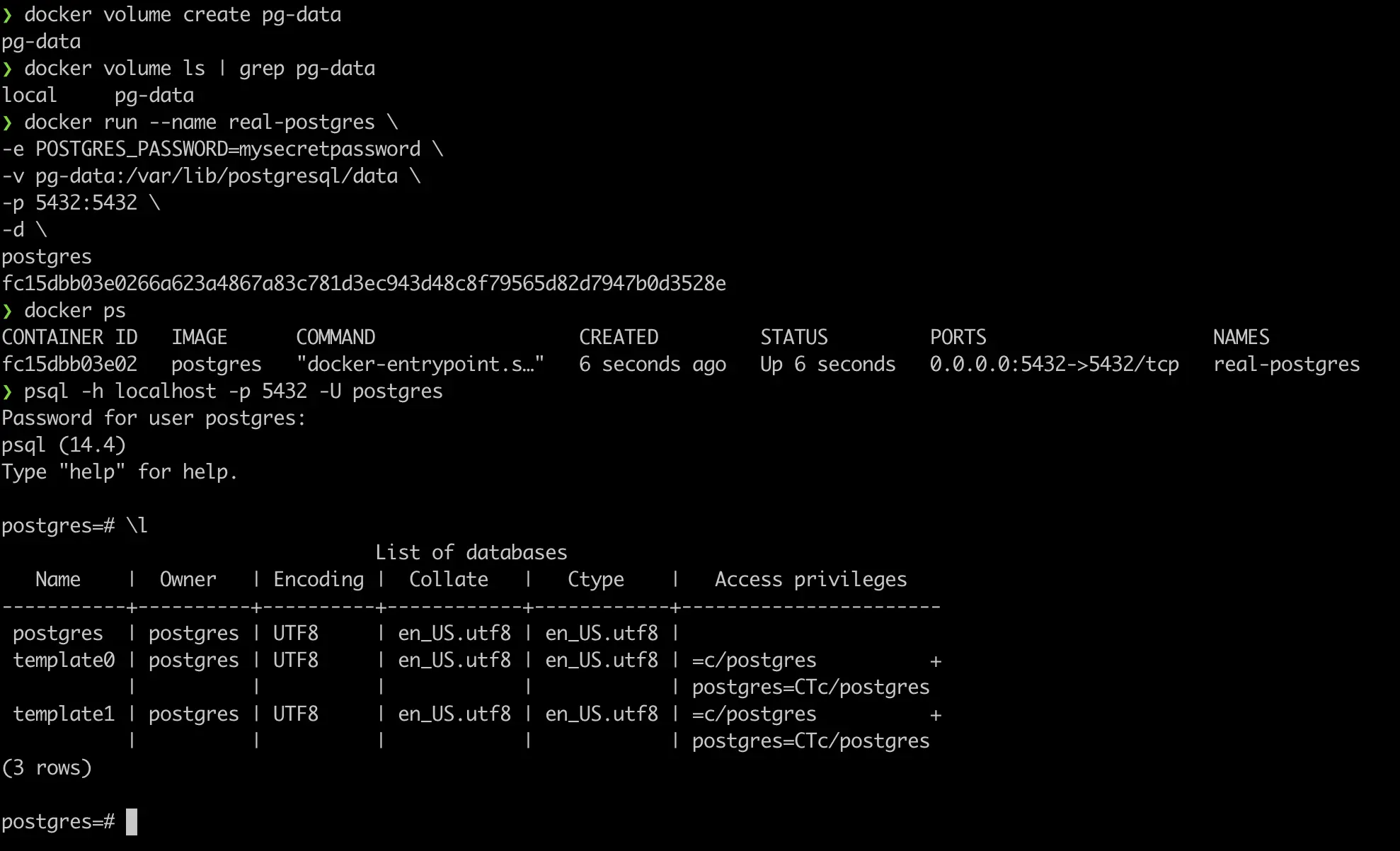
Execute the following command to create a volume named pg-data:
docker volume create pg-dataList all Docker volumes and ensure that pg-data was created:
docker volume ls | grep pg-dataRun a Postgres container with persistent storage and port forwarding:
docker run --name real-postgres \
-e POSTGRES_PASSWORD=mysecretpassword \
-v pg-data:/var/lib/postgresql/data \
-p 5432:5432 \
-d \
postgres
Where:
--name real-postgressets the container name,-e POSTGRES_PASSWORD=mysecretpasswordsets the password of the default userpostgres-v pg-data:/var/lib/postgresql/datamounts the pg-data volume as the postgres data directory,-p 5432:5432forwards from port 5432 of host operating system to port 5432 of container,-druns the container in detached mode or, in other words, in the background, andpostgresuse the postgres image. By default it will get the image from https://hub.docker.com
Execute docker ps to check on running containers on Docker. Take note that the real-postgres container has port forwarding information.
Now we are going to try to access the Postgres container with psql from the host operating system.
psql -h localhost -p 5432 -U postgresSample output:
Cleaning up the running container
Stop the container:
docker stop real-postgresDelete the container:
docker rm real-postgresDelete the volume:
docker volume rm pg-dataManaging Postgres container with Docker Compose
Managing a container with a long list of arguments to Docker is tedious and error prone. Instead of the Docker CLI command we could use Docker Compose, which is a tool for managing containers from a YAML manifest file.
Create the following file named docker-compose.yaml:
version: '3.1'
services:
  db:
    container_name: real-postgres-2
    image: postgres
    restart: always
    ports:
      - "5432:5432"
    environment:
      POSTGRES_PASSWORD: mysecretpassword
    volumes:
      - pg-data-2:/var/lib/postgresql/data
volumes:
  pg-data-2:
    external: false
To start the Postgres container with Docker Compose, execute the following command in the same location as docker-compose.yaml:
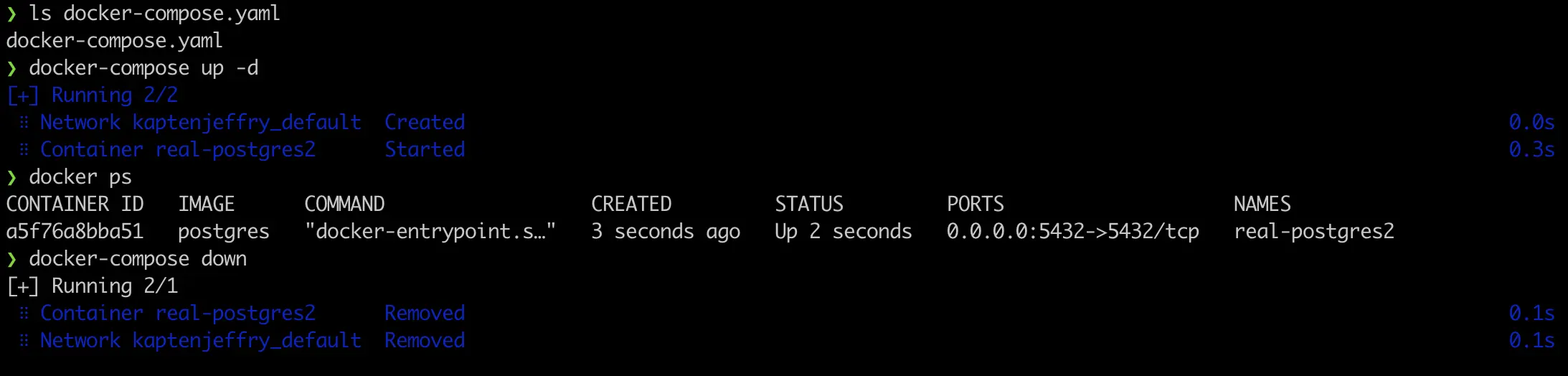
docker-compose up -dWhere -d runs the container in detached mode.
Execute docker ps to check on running Docker containers. Take note that real-postgres-2 was created by Docker Compose.
To stop Postgres container with Docker Compose, execute the following command in the same location as docker-compose.yaml:
docker-compose downSample output:
Conclusion
That’s all, folks. We have successfully deployed PostgreSQL on Docker.
Now we are able to reap the benefits of container technology for PostgreSQL, including portability, agility, and better management.
Comments