
Solving High-Resolution Video Stutter with GStreamer Hardware Acceleration

By Alejandro Ramon
May 18, 2026
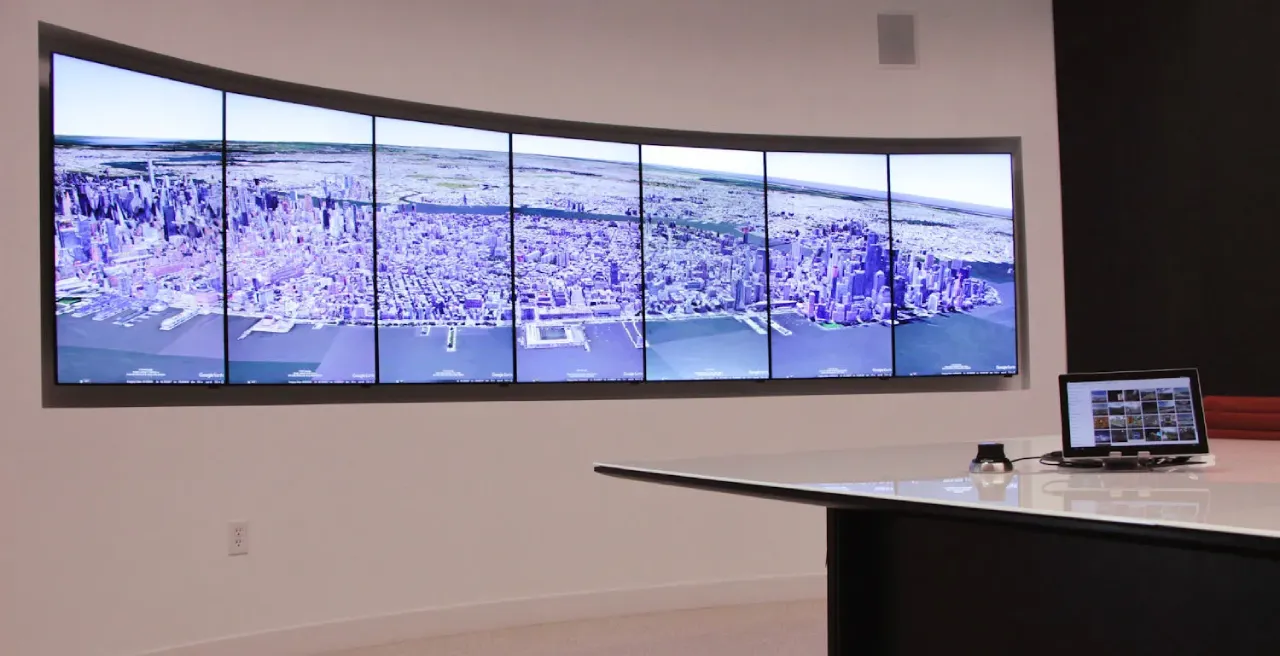
Photo from the VisionPort website.
In April, a client at Auburn University reached out to VisionPort Support to ask us to look into an issue with video playback for an upcoming presentation. They were running into performance issues attempting to play a video matching the full resolution of the seven-screen video wall, across all screens.
We have other clients playing video across all screens normally, on the same hardware and software, with no issue, so this was a strange report to the team. The seemingly simple request ended up leading us down a rabbit hole into how video playback works on the VisionPort platform and ultimately led to some serious modernization of our video rendering stack, the process of which we would like to share with you today.
Why was a system designed to play high-resolution video seamlessly across seven screens performing so poorly?
The System: A GStreamer Pipeline
The VisionPort video player is a custom application built on top of the GStreamer framework, initially developed to synchronize video across separate computers on our legacy Liquid Galaxy hardware configurations.
Each instance of the player renders a single video. This can be the full 7560x1920 canvas size of a seven-screen VisionPort, or often various subdivisions of the full resolution that cover two or three displays. Although the host hardware of our modern servers is theoretically sufficient, in practice the pipeline was overwhelmed.
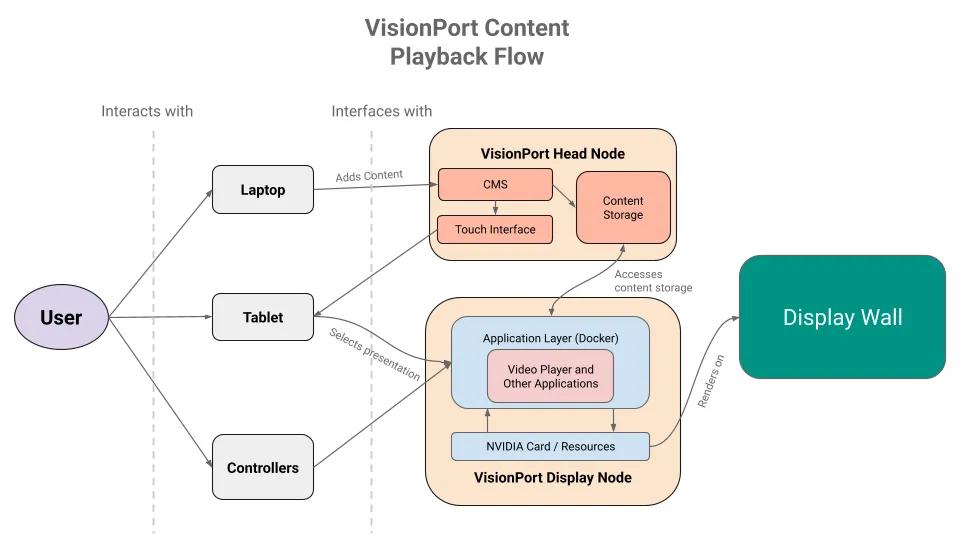
High-level overview of the content playback flow for VisionPort systems
First Instinct: The Encoding
Our initial hypothesis was that video encoding was to blame. Encoding impacts file size, quality, and playback compatibility, and we have previously encountered issues with certain Apple workflows, videos exported from Final Cut Pro, for example. Although nothing about the original video stood out to our team as improperly configured, we re-encoded the source using an H.264 codec and a well-formed container, and tested reducing the resolutions of the video.
The stutter persisted consistently across the test videos, ruling out encoding as the root cause. In fact, the lower-resolution videos still had stuttering issues, furthering our confusion.
Hardware Decoding, Take One
We next considered that the pipeline was running entirely on the processor (CPU) instead of utilizing the ample graphics card resources (GPU). Although the video player was originally designed to support hardware decode elements, software decode had been the default configuration for a number of years.
Architecturally, the video player runs from within an application layer deployed to the host via a Docker container. The host features an NVIDIA graphics card, so our logic was that leveraging the GPU for this high-resolution video should, in theory, reduce bottlenecks induced by running everything off of the CPU.
Implementing hardware decode was a project in itself. We discovered that the original legacy decoders present in the video player, such as vaapidecodebin and vaapipostproc, were not available to our server’s CPU. NVIDIA’s accelerated decoders are not part of GStreamer’s default plugin set packaged on the Ubuntu base that we use, meaning we had to identify and install the correct package source and plugin in our Docker images. The necessary plugin package, via apt, ended up being gstreamer1.0-plugins-bad.
Lastly, we needed to resolve Docker-related resource-visibility issues to ensure the container could access the GPU. That meant using the NVIDIA Container Toolkit and passing the correct environment variables to the container so that it could utilize the GPU resources.
Once properly configured, and by enabling hardware decode in the launch command, we were able to determine that hardware decoding was functional.
A few useful commands to check whether the expected resources are present in the container:
nvidia-smi
# Checks if the container can access the GPU at all.

nvidia-smi dmon -s u
# Provides an ongoing report of what GPU features are being utilized over time,
# so we can see whether the decoder is being used.

gst-inspect-1.0 nvcodec
# Gets a list of supported features present for your current implementation of
# GStreamer with the NVIDIA codecs. You can also run the command without a
# specific feature to list every supported feature present.
After finally confirming that hardware decode was functioning, we discovered that playback had improved somewhat, but the stutter was not fully resolved.
The Real Culprit: Rendering, Not Decoding
At this point we were stumped, so we tried playing the video in another player we had available on the system, ffplay. The video appeared to play back somewhat normally.
We reported this to our developer, who decided to enable GStreamer’s debug output. The logs were filled with quality-of-service messages, indicating that one or more pipeline elements could not process frames quickly enough, causing downstream stages to drop or delay them.
The QoS pattern suggested the bottleneck was in the sink, not the decoder. The video player’s GStreamer autovideosink element was defaulting to xvimagesink, which relies on the CPU for color-space conversion and video texture handling. At 7560x1920px resolution and 60 fps, the CPU was unable to keep up with rendering the large amount of data. It turns out that the source of the issue had more to do with the framerate of the high-resolution video than with the resolution itself.
The host had glimagesink available, which is an alternative sink that uses OpenGL for GPU-based color-space conversion and texture upload. By explicitly specifying glimagesink instead of relying on autovideosink, we assigned rendering to the appropriate hardware.
This single change restored smooth playback at the target resolution.
Putting the Pieces Together
Even though we had a solution for the issue at hand, there were a few more details to sort out to make this universal for all media going forward. It turns out that the NVIDIA accelerated H.264 decoders for the hardware generation we use top out at 4K, meaning that H.264 encoded videos larger than 3840x2160 would not be able to run on the GPU even if we specified use of the decoder. Luckily, our implementation was robust enough to swap back to decoding on the CPU in the case of a fault.
Additionally, the H.265 decoder supports higher resolutions, comfortably handling 7560x1920 and allowing for future scalability.
The complete pipeline now runs the GL-backed sink with the option to enable hardware decode for H.264, H.265, VP8, VP9, or AV1, all common encoding formats. The format is auto-detected and will utilize the decoder if the content is acceptable. The CPU render is no longer a bottleneck for decoding or rendering, allowing videos to play back at the full 60 fps, even at higher resolutions.
Beyond One Engagement: Broader Implications
The Auburn University request prompted us to reevaluate our video player stack, particularly a legacy renderer choice and plugin-installation pattern from prior to our move to containerized deployments. Not mentioned in our process above were bug fixes to fix potential memory bugs and improvements to our testing process to simplify future changes.
These improvements are now incorporated into the upcoming VisionPort Library MQTT migration of the VisionPort application layer. New deployments will default to hardware-accelerated decoding via NVIDIA decoders and GL-backed rendering via glimagesink, rather than defaulting to the CPU path with the old renderer.
Key takeaways include:
- Instrument first if a video pipeline is stuttering. GStreamer’s verbose debug output, particularly QoS messages, identifies pipeline bottlenecks.
- Do not assume the autodetected sink is optimal.
autovideosinkis frequently adequate, but check the available sinks for your operating system. - Hardware acceleration in a container requires more than package installation. The container must have GPU visibility and the correct plugin set, which may be its own task.
- Decoder and renderer can be independently CPU- or GPU-bound. Ensuring both are GPU-accelerated is crucial for high-resolution pipelines.
Working with End Point
If you’re facing video playback or multimedia pipeline performance challenges, whether with GStreamer, in a containerized environment, or across a multi-screen VisionPort-style installation, End Point’s Immersive and Geospatial division has extensive experience with these issues.
The GStreamer documentation is a valuable resource, and we are available to discuss our insights from similar deployments. Get in touch to set up a consultation.
video visionport hardware ubuntu
Comments